Studio Art Honors I
  • Current Assignments
  • Course Expectations
  • Resources
  • Burlington High School Art & Design Program

Turning In Your Work Via Google Classroom

9/28/2017

0 Comments

 
After you have scanned or photographed each artwork you complete in this class, please turn in each assignment via Google Classroom. To do that:

1. Go to classroom.google.com.
2. Click the class and then click the assignment.
3. Attach your file.
          Next to Add, click the Down arrow, and then Drive, Link, or File Attach.
          Select the attachment.
4. Click Add.
          **Note: You can attach or create more than one file.**
5. (Optional) To remove an attachment, click Remove.
6. (Optional) Add a private comment to your teacher and click Post.
7. Click Turn In and confirm.
0 Comments

Documenting and Turning In Your Art Assignments

9/25/2017

0 Comments

 
When an assignment is completed, you'll need to take a high quality photograph of your artwork, then turn in the image as your assignment through Google Classroom.

Here are some tips:
  • Use the best camera you have (iPad, phone, or classroom/teacher's camera)
  • The artwork should be neat, not folded or damaged
  • Hang the art on a flat wall or place on an easel
  • Set up art with light that is consistent and equal over the entire work of art (No shadows)
  • Take a few pictures of the same artwork
  • Upload your photo(s) onto the computer, then delete the images from the camera roll.
  • Check your pictures and select the most accurate one
  • Use a photo editing application to crop and edit your work.

Turn In the Photograph 
  • Name the file with the name of the assignment
  • Place the picture into your drive folder for this class (Create a folder for this class if you have not already).
  • Go to Google Classroom and turn in your assignment

Turning in Your Work in Google Classroom

After you have scanned or photographed each artwork you complete in this class, please turn in each assignment via Google Classroom. To do that:

1. Go to classroom.google.com.
2. Click the class and then click the assignment.
3. Attach your file.
          Next to Add, click the Down arrow, and then Drive, Link, or File Attach.
          Select the attachment.
4. Click Add.
          **Note: You can attach or create more than one file.**
5. (Optional) To remove an attachment, click Remove.
6. (Optional) Add a private comment to your teacher and click Post.
7. Click Turn In and confirm.
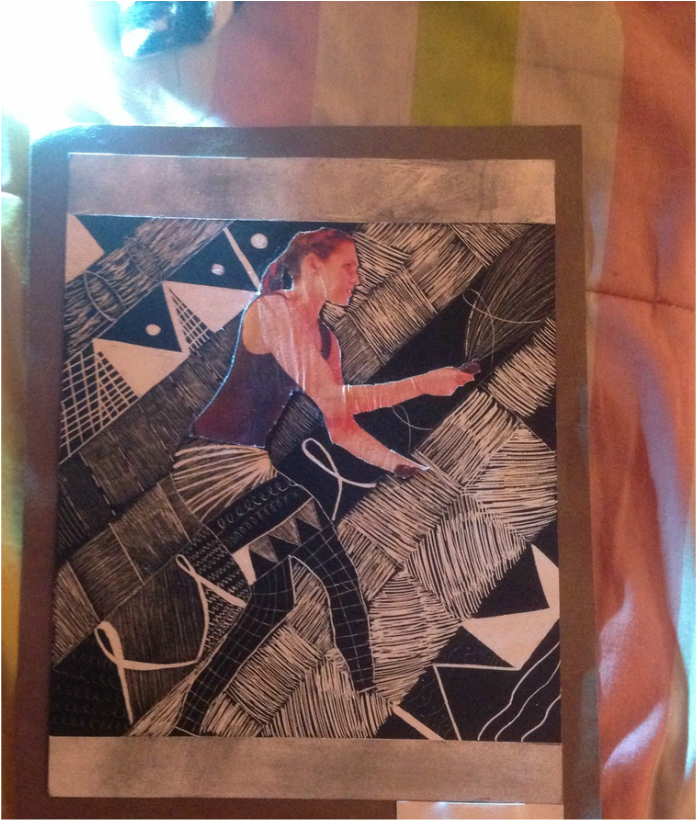
DON'T turn in a photo like the one below. It's crooked. There are light glares. The image is a little blurry and somewhat hard to see. There is a lot of excess around the artwork.
Picture
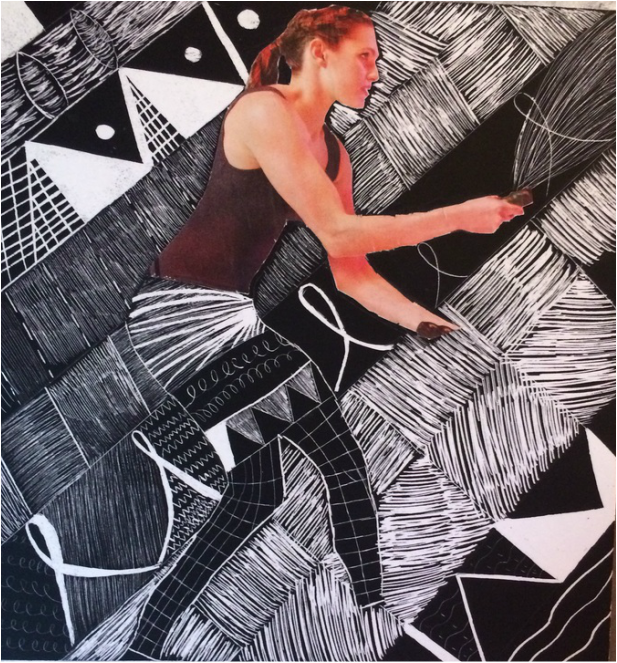
The image below was edited in a photo editing application. If you set up the photograph well to begin with, you may be able to skip this step. Compare it to the photo above. Notice how much cleaner and clearer it is.
Picture
FYI: An alternative to taking a photograph is to scan your artwork, if your artwork is the same size of smaller than your scanning bed. The Design classroom 215 also has a larger format scanner that will scan sketchbook size (11 x 14") artwork.
0 Comments

Fill Out Forms ASAP

9/4/2017

0 Comments

 
Due Dates:
Part 1 -- Today
Part 2 -- Tomorrow

Instructions:

1. 
Fill out this Student Information Form.

2.
Print this Permission to Publish Form. Please check off the appropriate boxes, have your parents or guardians do the same, sign the form and return it tomorrow.

3.
Join the Google Classroom for Design by using this code: 0pafmxa
0 Comments

    Author

    Mr. Ratkevich
    781.273.7024 (office)
    [email protected]
    http://mrratkevich.weebly.com

    Archives

    January 2023
    December 2022
    November 2022
    October 2022
    September 2022
    August 2022
    June 2022
    May 2022
    April 2022
    March 2022
    February 2022
    December 2021
    October 2021
    September 2021
    June 2021
    April 2021
    March 2021
    January 2021
    December 2020
    November 2020
    October 2020
    May 2018
    April 2018
    March 2018
    February 2018
    January 2018
    December 2017
    November 2017
    October 2017
    September 2017

    Categories

    All

    RSS Feed

Powered by Create your own unique website with customizable templates.